
Change agents. Keep your workflow.
Four agents shouldn’t mean four terminals. Fleet runs Claude Code, OpenCode, GitHub Copilot and Pi side by side, each in its own worktree, and tells you which one needs you.
curl -fsSL https://github.com/pgermishuys/fleet-releases/releases/latest/download/install.sh | shClaude Code on one task, OpenCode on the next. Both in one list.
Pick the best agent for each job, run them all at once, and stop switching windows to find out which one needs you.
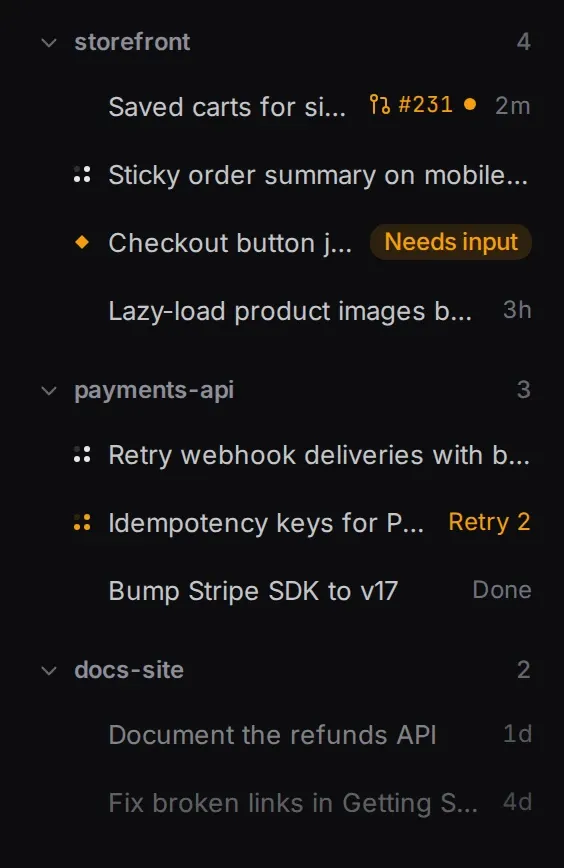
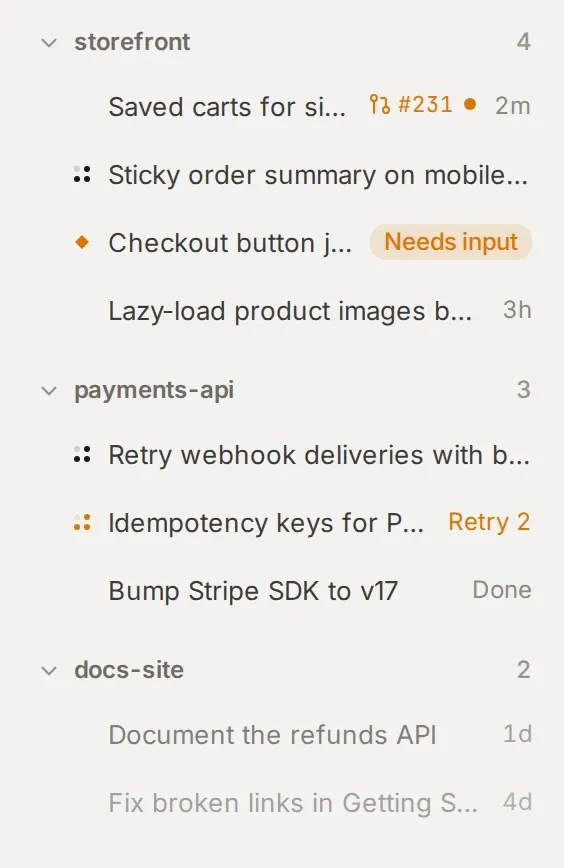
- 9 sessions
- 3 repositories
- 4 harnesses
- 1 list
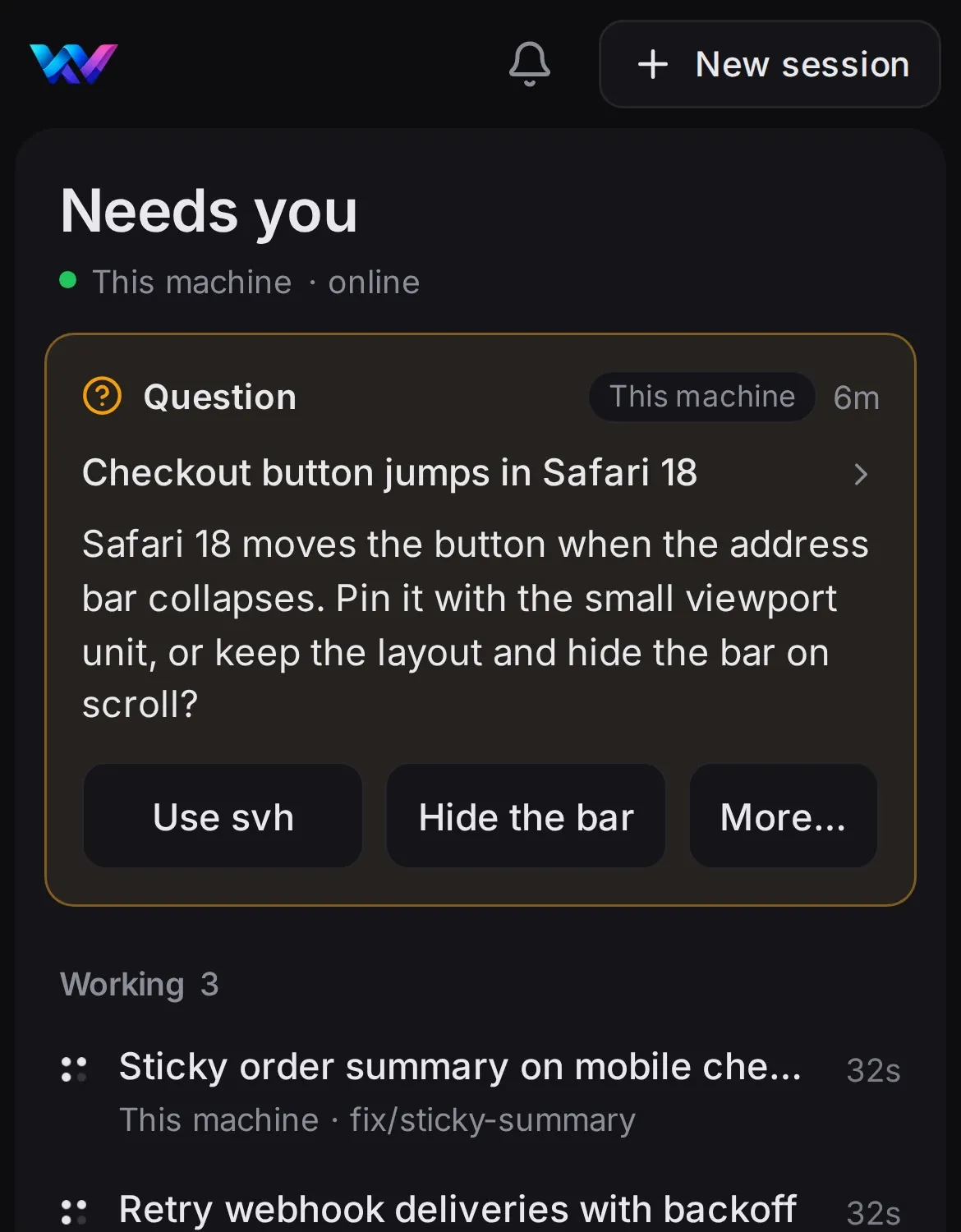
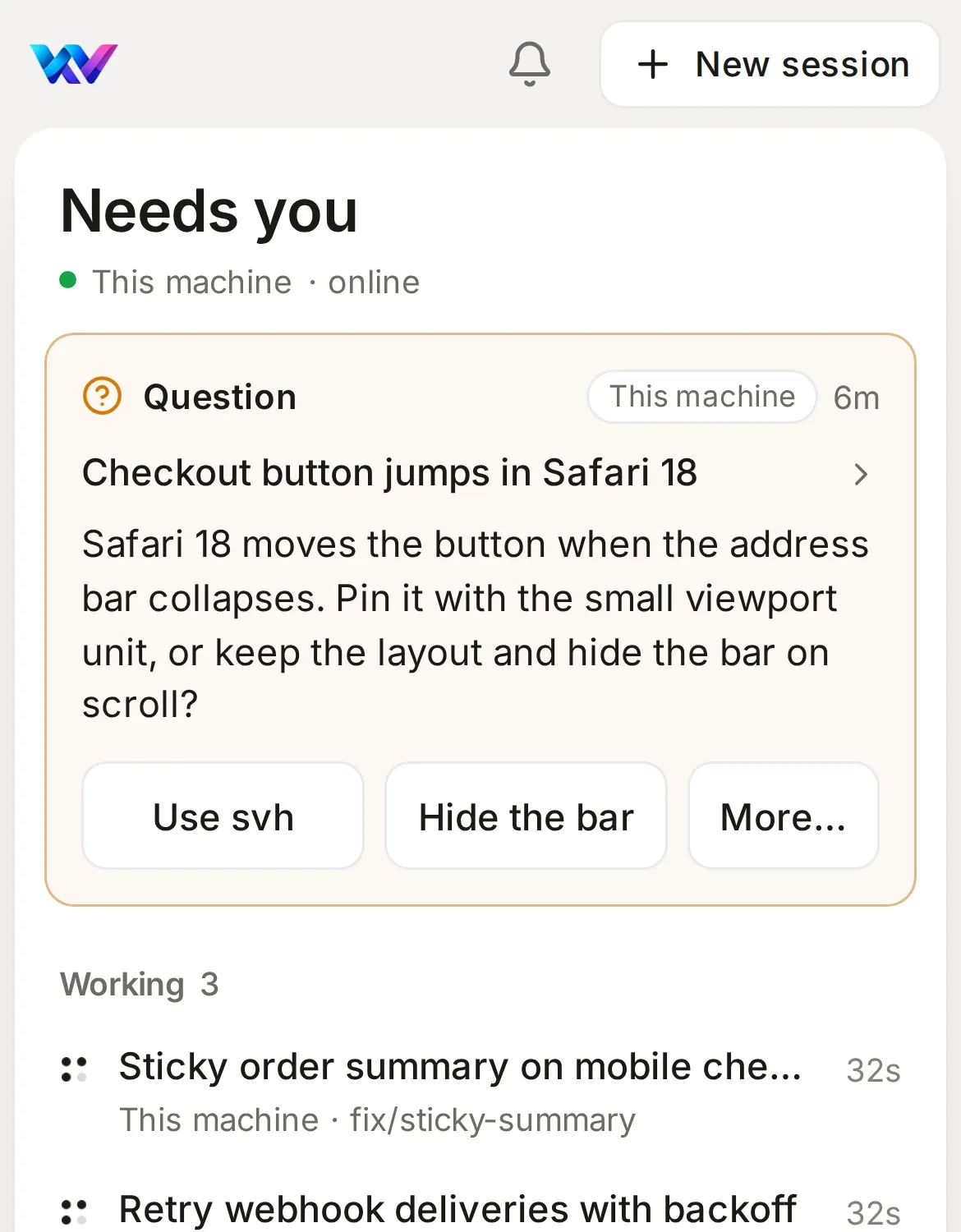
Whoever asks, it lands in one place.
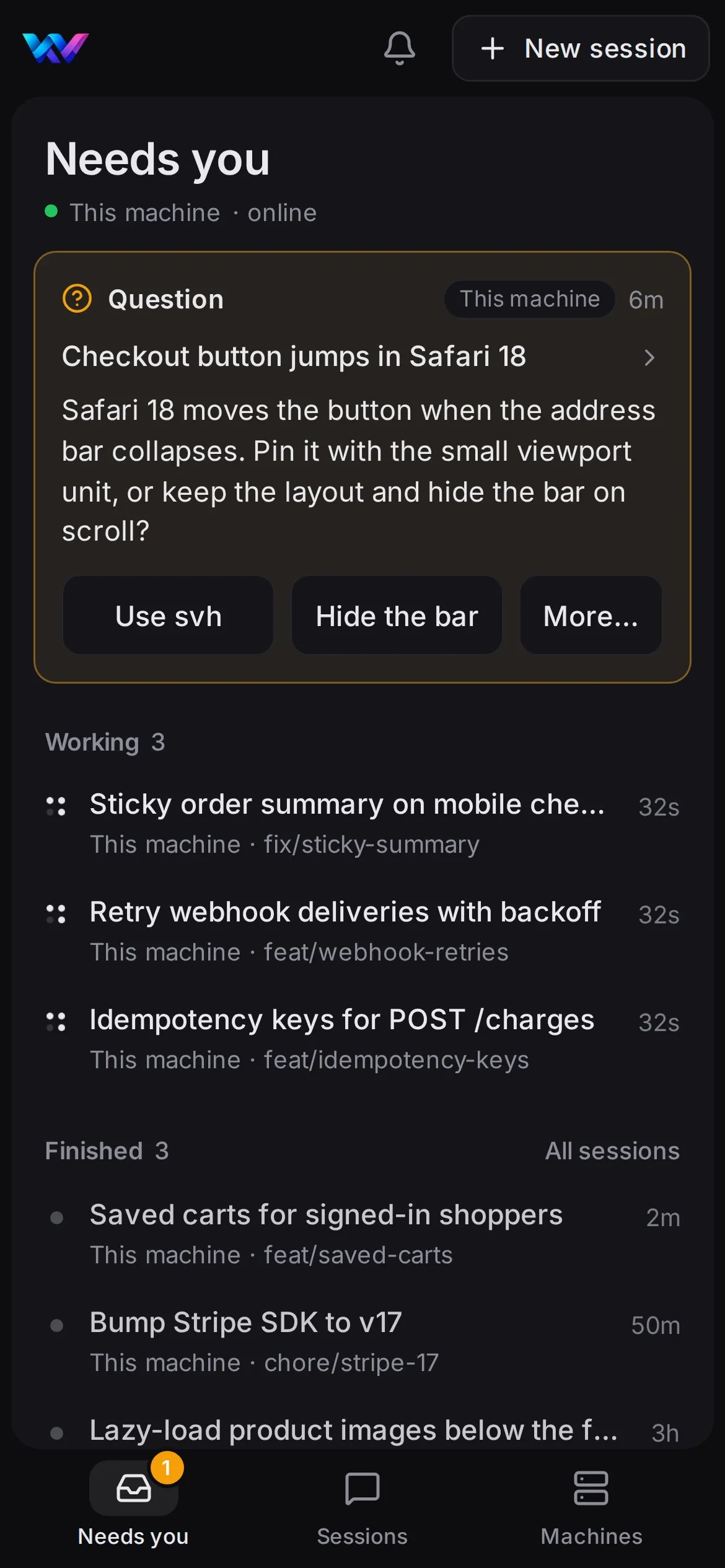
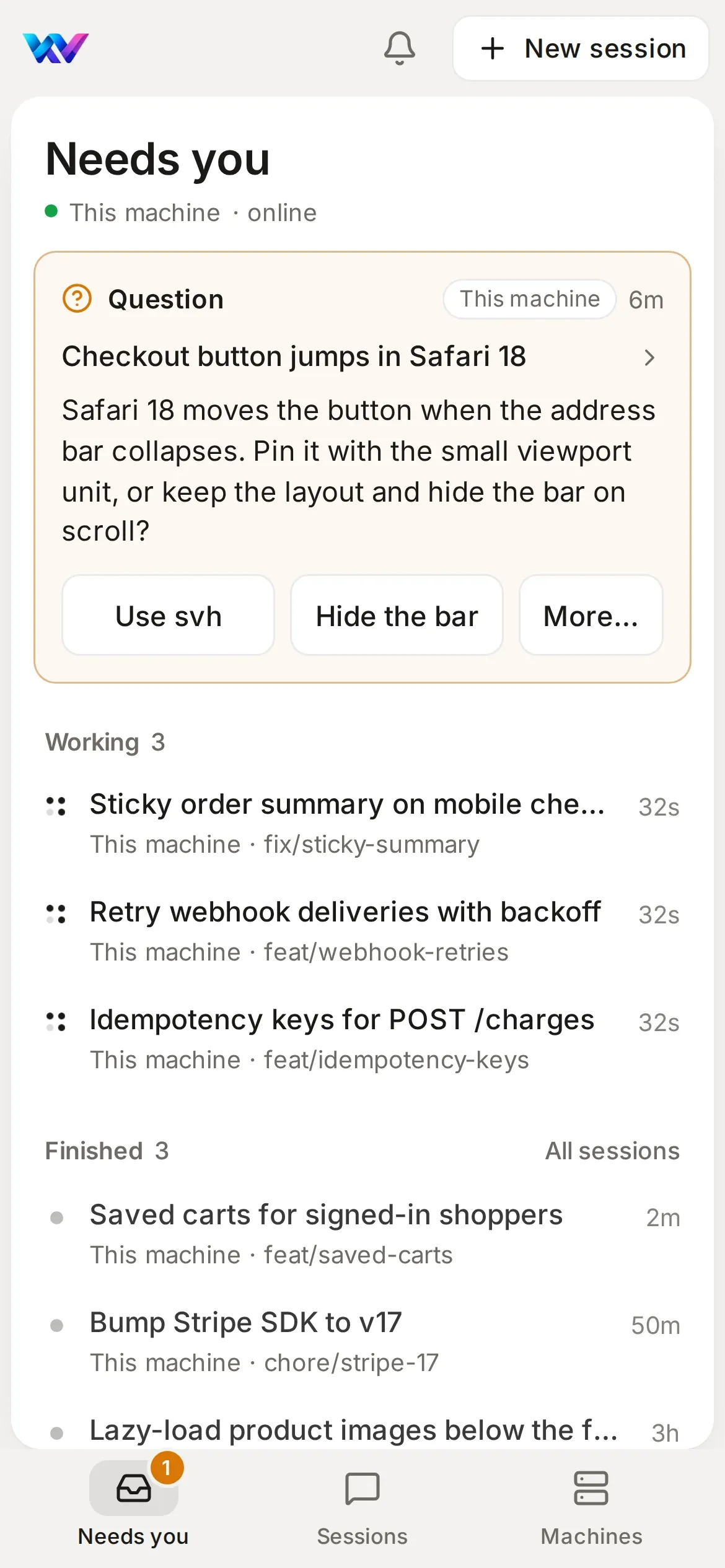
When any session needs you, its row says Needs input and your phone tells you, whichever harness it runs on.
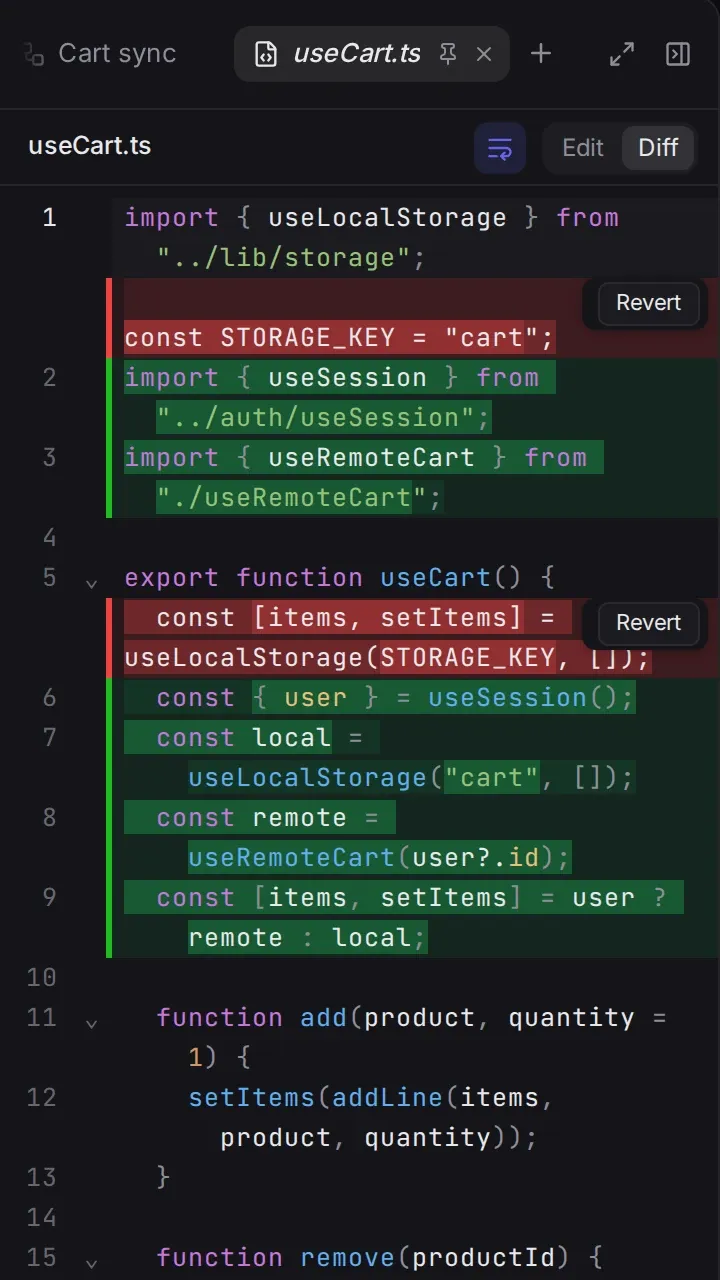
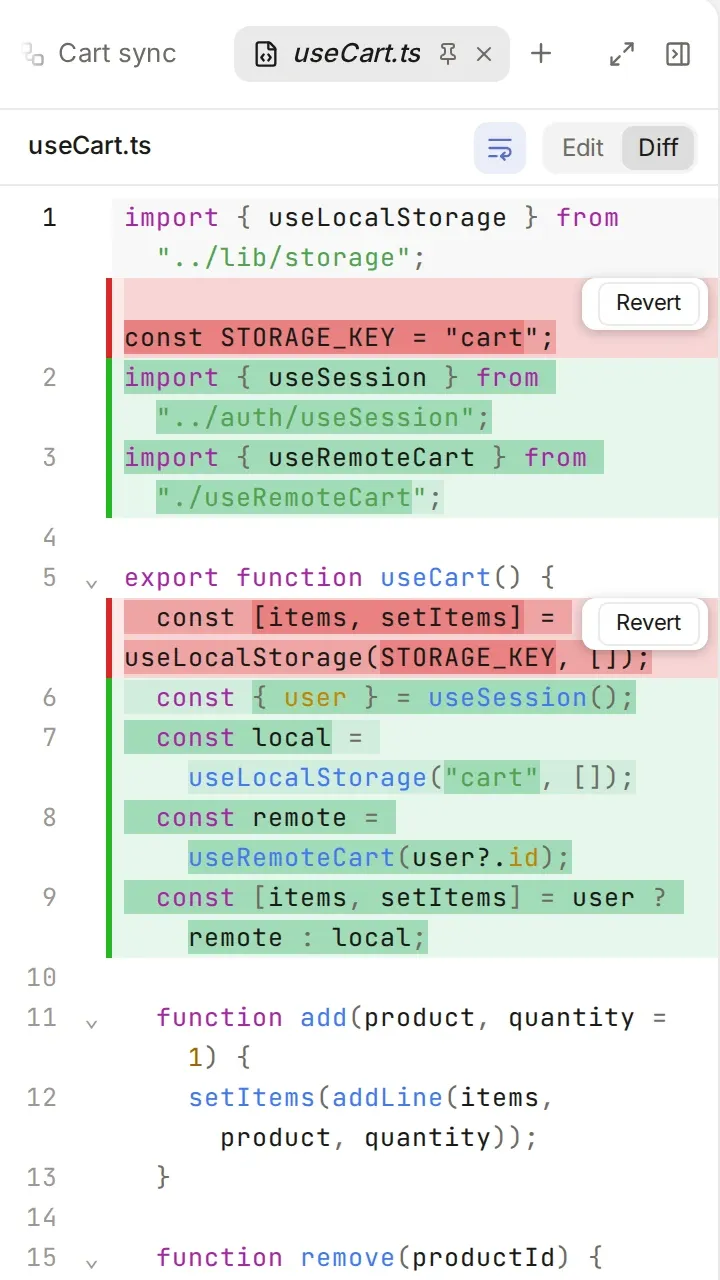
Review every agent’s work the same way.
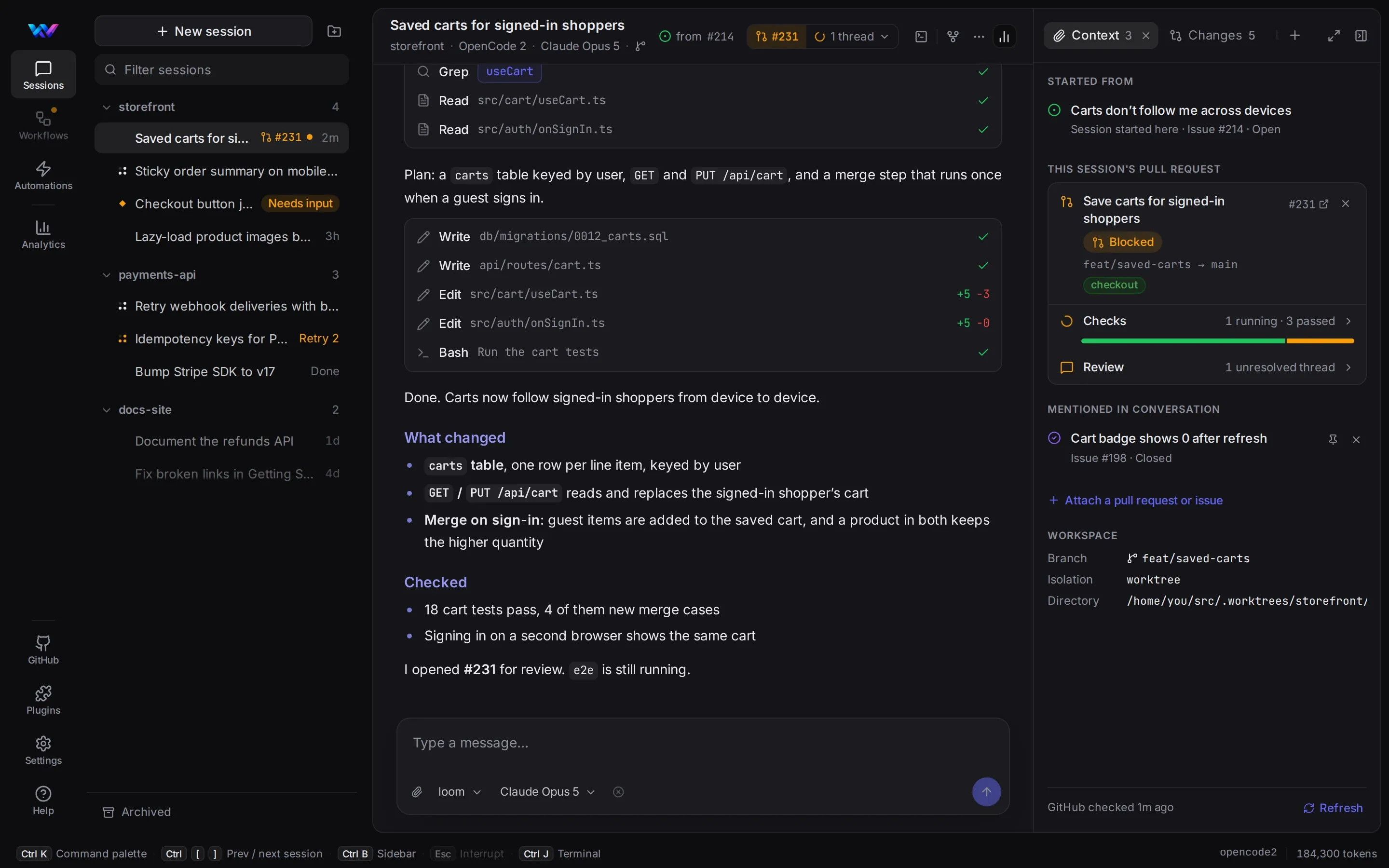
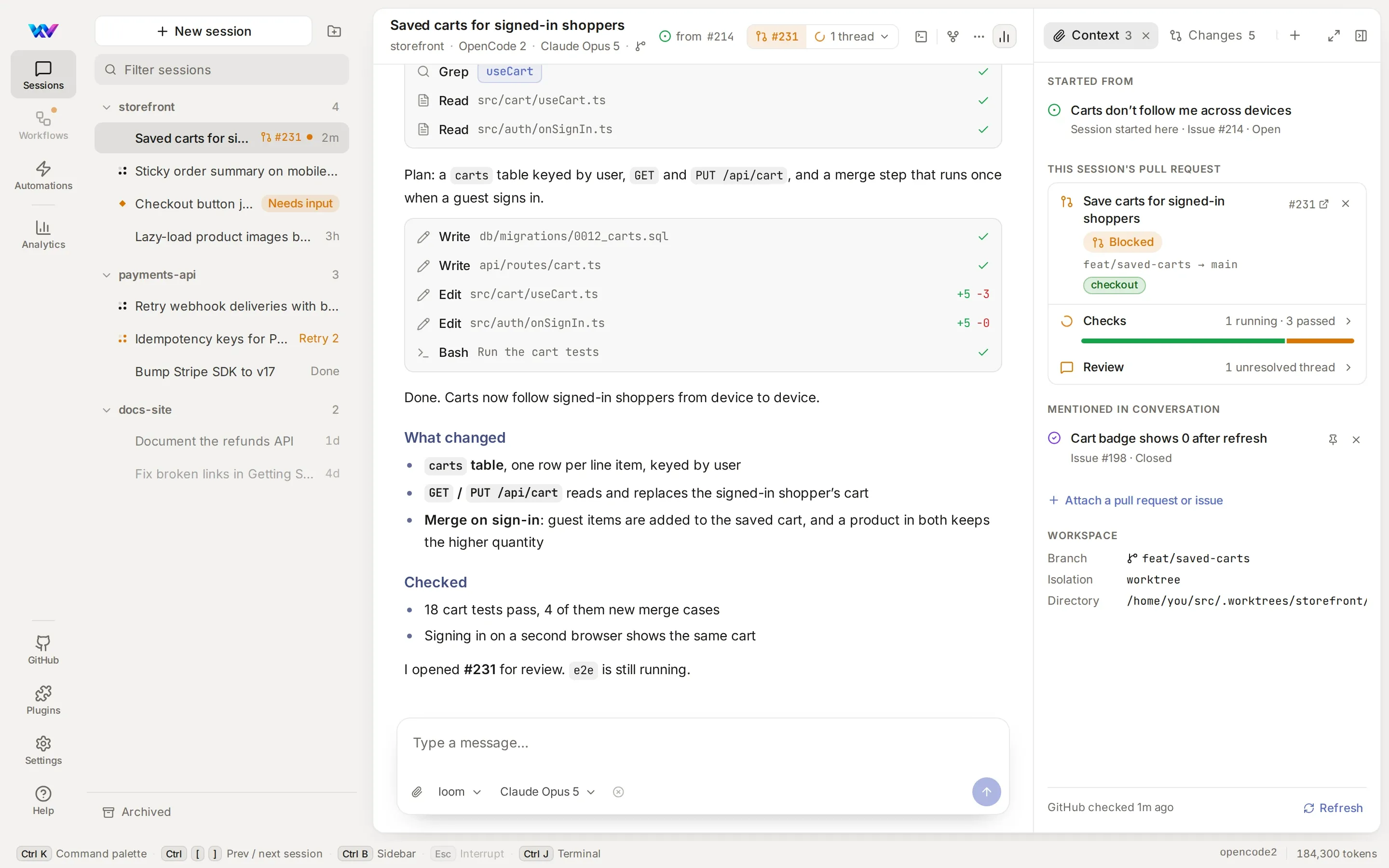
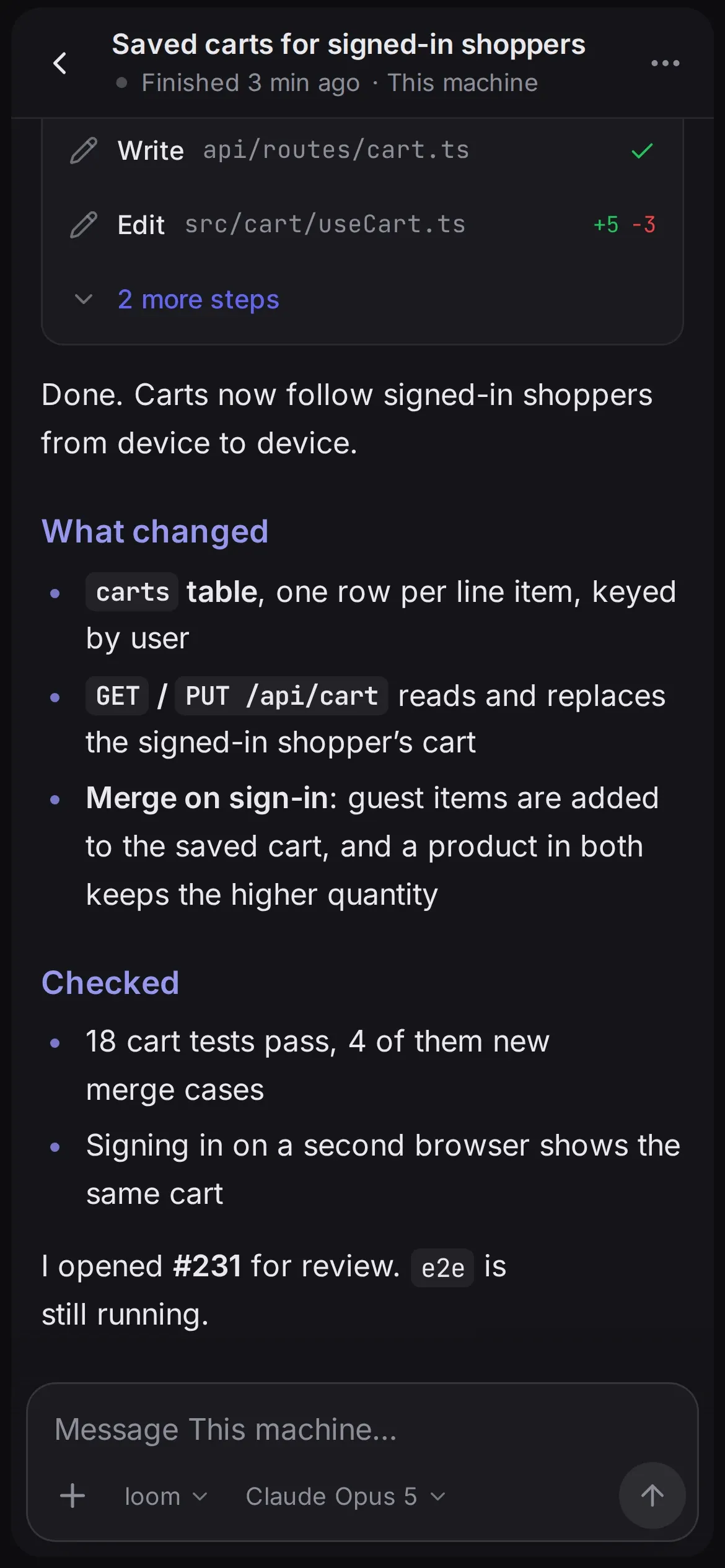
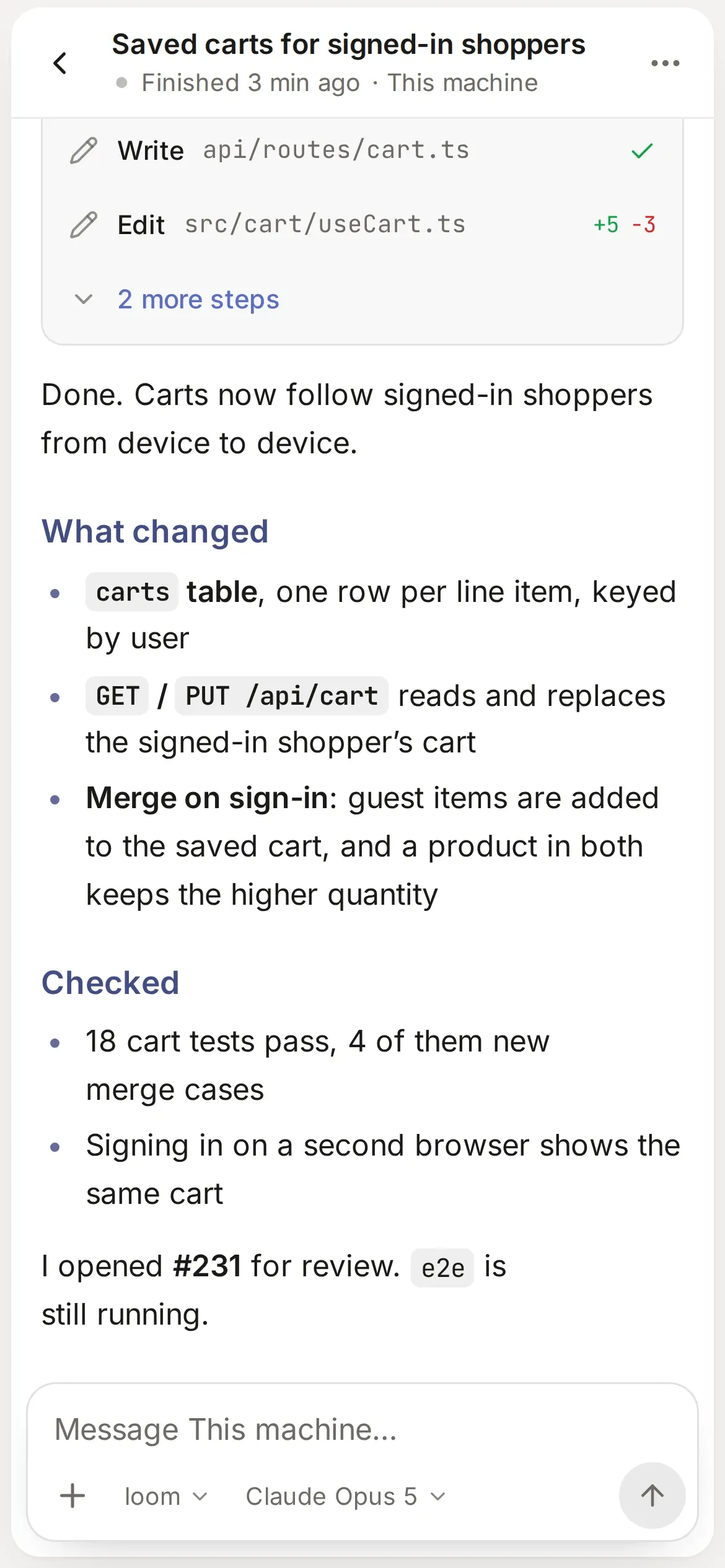
Changes, diffs, the running app and the pull request, beside the chat, whichever harness wrote the code.
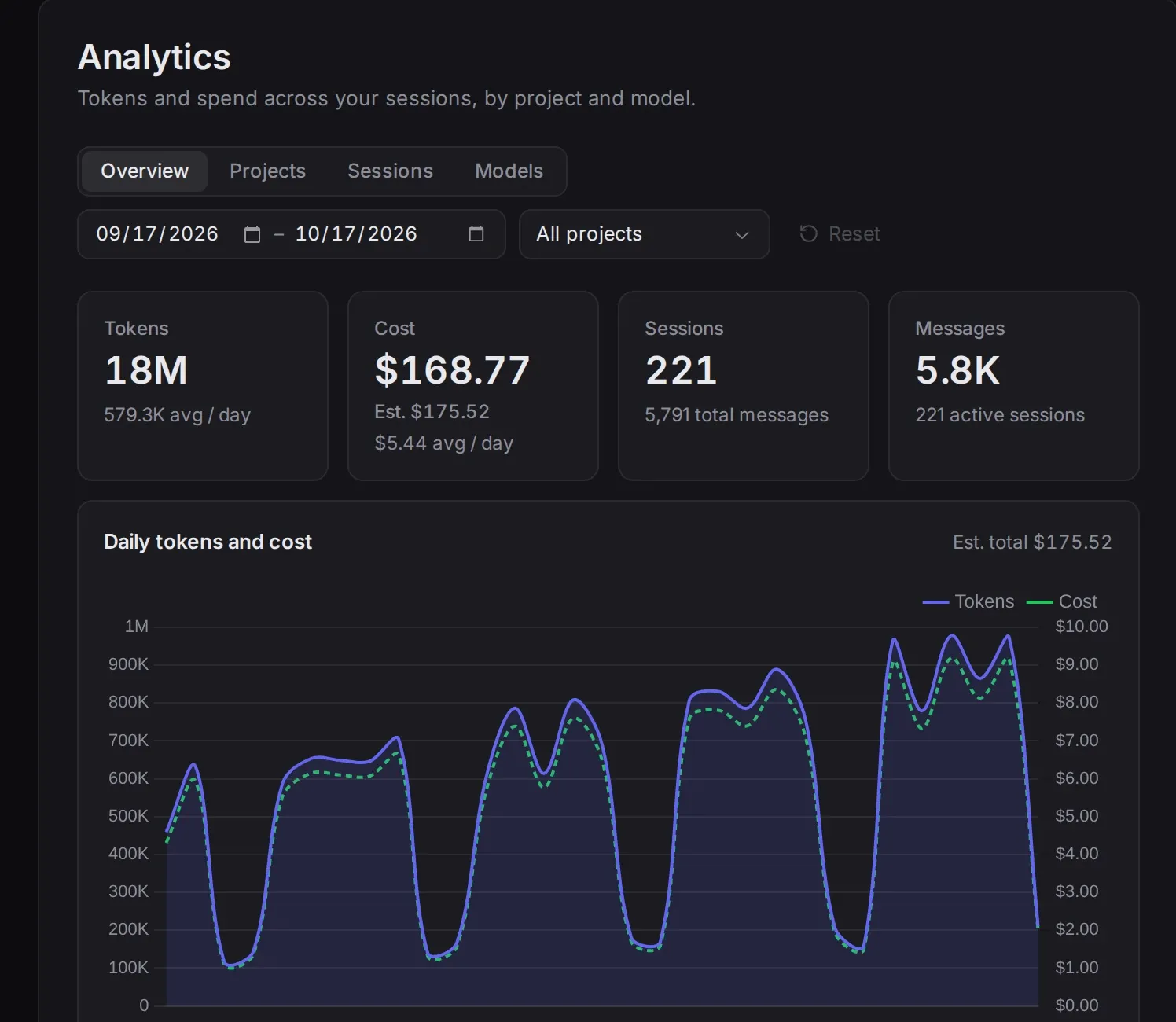
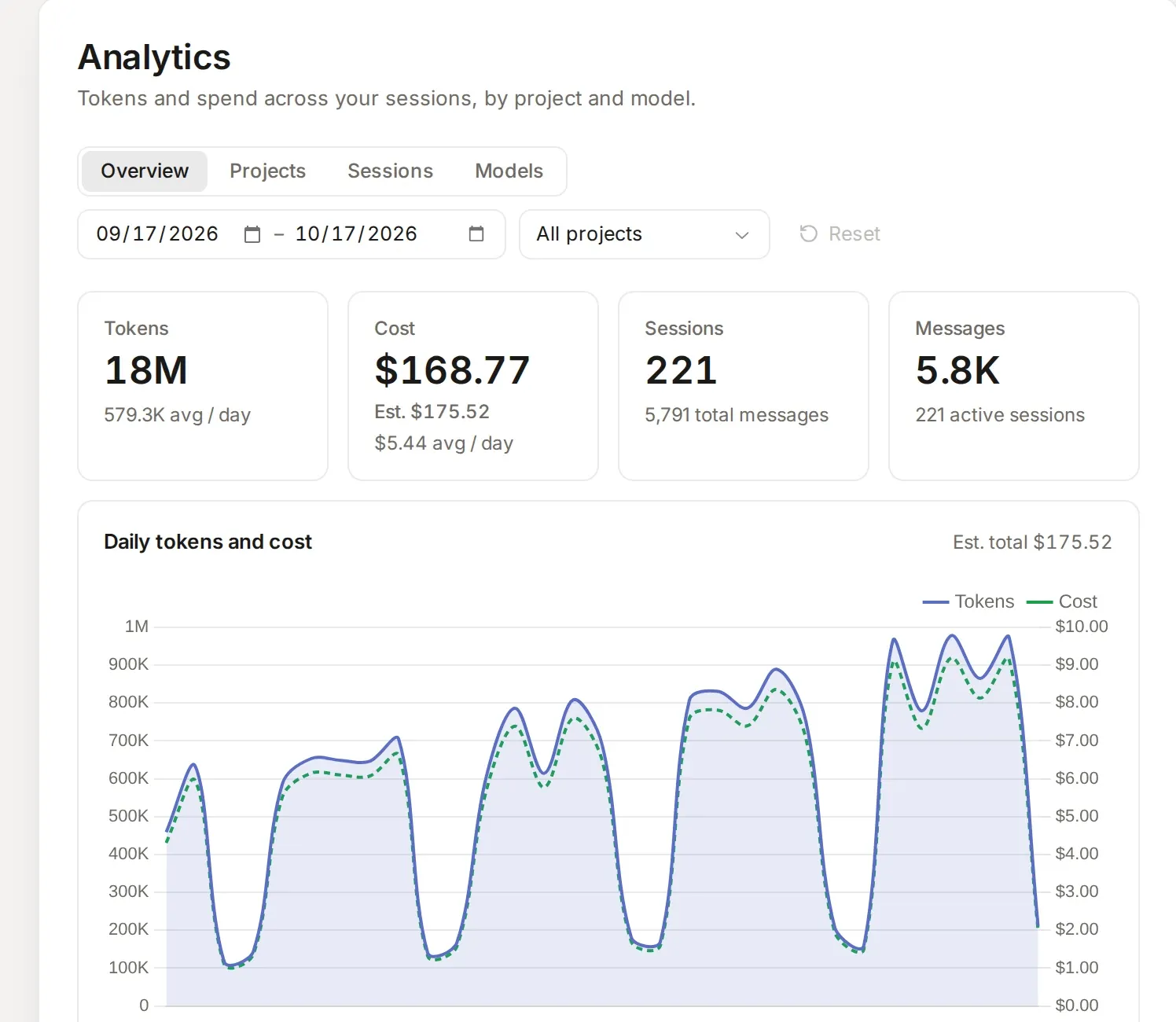
One bill across every model.
Tokens and spend by day, project and model.
Next month’s best model is somewhere else? Pick it for your next session. Your list, worktrees, automations, shortcuts and phone stay as they are.
The agents keep changing. The way you work with them shouldn’t.
Switch harness without switching apps.
A better model lands every few weeks, and it often comes with a different tool. In Fleet, moving a task from Claude Code to OpenCode is a menu choice. The session list, the review panel, the phone view and your shortcuts stay where they were.
- harness
- Claude Code → OpenCode 2
- model
- Opus → Claude Opus 5
- everything else
- the same, bar a few extras
Many agents, none in each other’s way.
Every session gets its own branch in its own git worktree, started from the latest origin/main (or your repository’s default branch). Run five at once and your checkout is never touched.
Know who needs you.
Each row shows whether the session is working, needs input, is retrying or is done, and quiet sessions fade with age.
Review where the work is.
The diff, the running app and the pull request with its checks sit beside the conversation. You don’t open another tab to find out whether it worked.
Yours, on your machine.
Fleet runs locally with your harness, your subscriptions and your keys. There’s no Weave account, and Fleet doesn’t send your code to Weave, even from your phone.
From a sentence to a merged pull request.
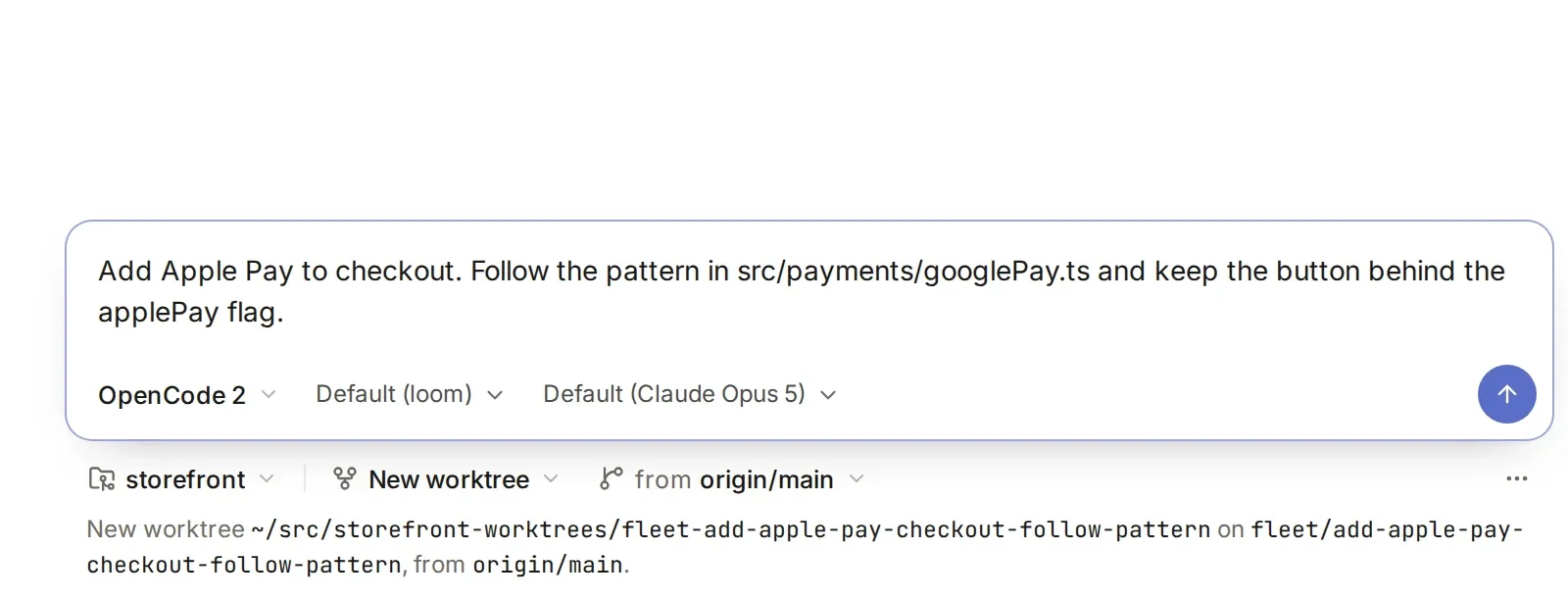
Say what you want done.
Describe the task, pick a repository, a harness and a model. Fleet makes the worktree and starts the session. Start from a GitHub issue and the link follows it to the pull request.
Your first session →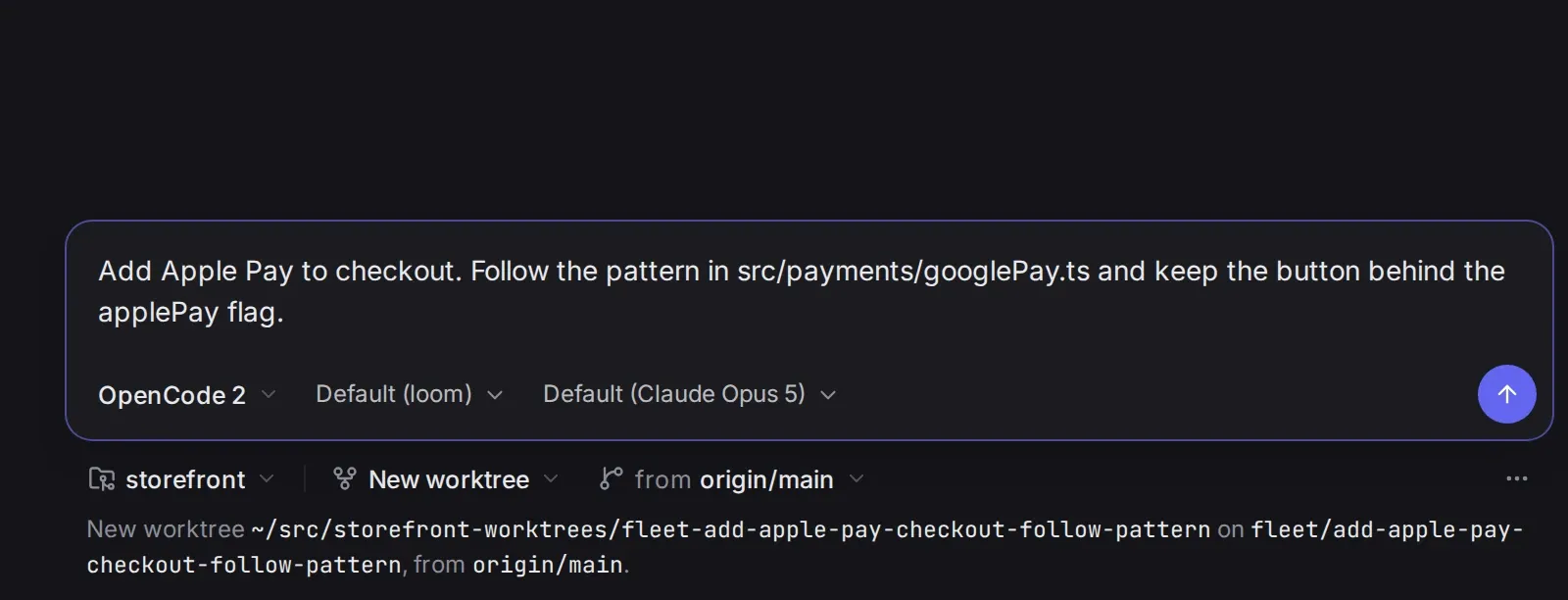
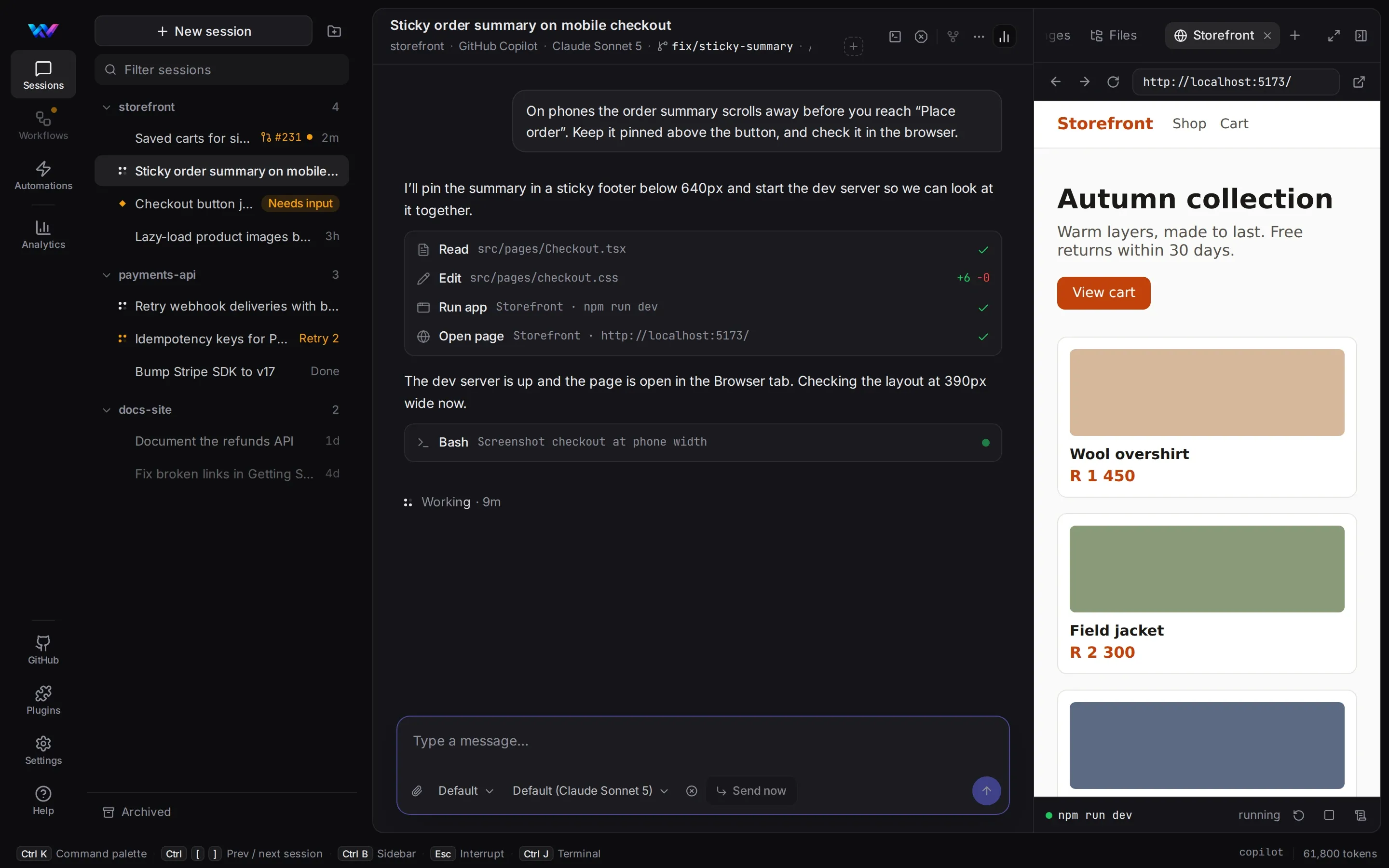
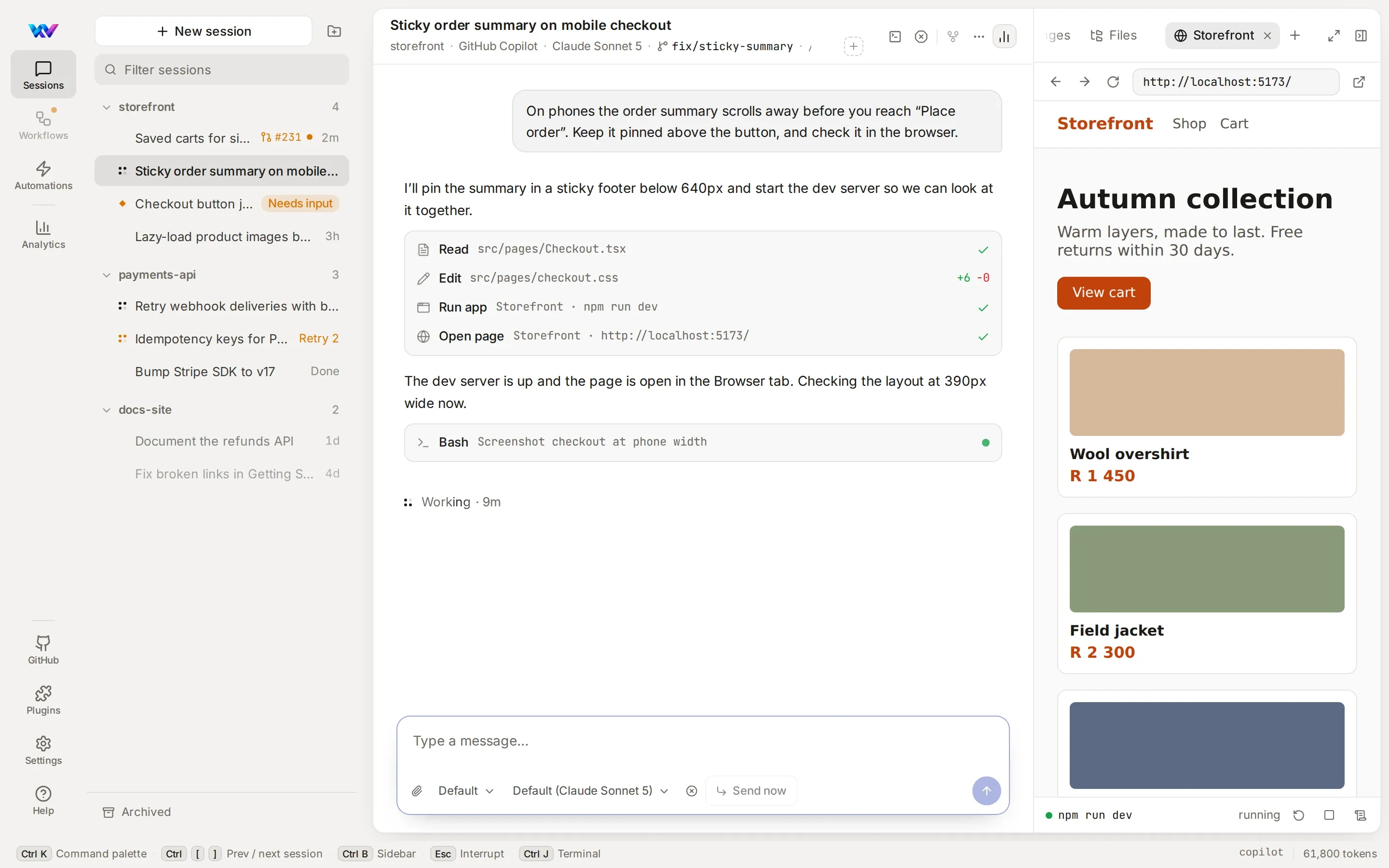
Try what it built.
Fleet runs the dev server for the session and opens the app in a Browser tab beside the chat. Every changed file is one click from its diff.
Follow it through CI.
The issue, the pull request, its checks and its unresolved review threads stay fresh in the Context tab. A week after you archive a session, Fleet removes its worktree folder and keeps the branch.
Step away. Fleet tells you when it needs you.
Fleet is a web app that runs on your machine. Put it on your Tailscale network with tailscale serve, pair your phone in Settings → Machines → Add a phone, and add it to the Home Screen. When an agent asks a question, your phone notifies you and you answer from there.
Your other computers can add this Fleet under Settings → Machines and work in its sessions.
Other devices need a key to reach Fleet. The machine’s access token can do anything Fleet can, so treat it like a password.
Hand Fleet the repeat work.
Run a prompt on a schedule
Save a prompt and run it on a schedule or when an event happens. Type “every weekday at 8” and Fleet fills in the schedule.
Steps that stop for you
Build a feature or fix a bug: plan, approve, build, review, open the pull request. Experimental: switch it on in Settings → Workflows.
Built-in know-how
Code review, debugging, design and mockups, each one a switch in Settings → Skills.
Change what Fleet shows
Ask an agent for a small add-on, such as test counts on a tool row. Experimental: switch it on in Settings → Features.
Read the guide →The screen is the same. A few extras depend on the harness.
Fleet uses what each harness can do. The rest of the screen stays as it is.
| Feature | OpenCode 2 | Claude Code | GitHub Copilotexperimental | Pi |
|---|---|---|---|---|
| Sessions, worktrees, review, pull requests, phone | ✓ | ✓ | ✓ | ✓ |
| Steer a turn while it runs | ✓ | ✓ | ✓ | – |
| Agent shows pages and diagrams beside the chat | ✓ | ✓ | ✓ | – |
| Subagents as their own sessions | ✓ | ✓ | – | – |
| Workflow steps | ✓ | ✓ | – | – |
| Fork a conversation | ✓ | – | – | – |
| Weave agents in the agent picker | ✓ | – | – | – |
Read from each harness’s capability flags in Fleet 0.57.0. What works where has the full table.
Running in five minutes.
Install Fleet
Download the desktop app for macOS, Windows or Linux, or run one command.
Install →Add a harness
Fleet finds the harnesses already on your computer. Settings → Harnesses installs the ones that offer it and signs in where a harness supports that.
Choose a harness →Start a session
Pick a repository, describe the task, and watch it land in its own worktree.
Your first session →
Download the app, or run one command.
Builds for macOS (Apple silicon), Linux (x64) and Windows (x64 and Arm). You’ll also need a harness: OpenCode, OpenCode 2, Claude Code, GitHub Copilot or Pi. More on installing.
macOS Apple silicon
The first time, macOS can’t verify the developer: open System Settings → Privacy & Security and choose Open Anyway.
Windows x64 and Arm
If SmartScreen says it protected your PC, choose More info → Run anyway. Updates install themselves.
Linux x64
The AppImage needs FUSE 2 (libfuse2) and updates itself. The .deb installs to /opt/Fleet.
Or from a terminal
Install Fleet
curl -fsSL https://github.com/pgermishuys/fleet-releases/releases/latest/download/install.sh | shOpen a new shell
The installer puts Fleet in ~/.weave/fleet/bin and adds it to the PATH in your shell profile. Open a new shell, or run this in the one you have.
export PATH="$HOME/.weave/fleet/bin:$PATH"Start it
Then open http://127.0.0.1:6262.
fleet
Install Fleet
In PowerShell:
irm https://github.com/pgermishuys/fleet-releases/releases/latest/download/install.ps1 | iexStart it
Then open http://127.0.0.1:6262.
fleet
Updates: on Windows and the Linux AppImage, the desktop app downloads them and installs on restart; on macOS and the .deb it tells you a new version is out. From a terminal, fleet update moves you to the latest release and fleet version says which one you have. Release notes live on GitHub.
Before you install
Is Fleet free?
Yes, Fleet is free. You pay your harness or model provider as you do today.
Does my code leave my machine?
Only the way your harness already sends it to your model provider. Fleet runs on your machine and talks to your phone and other computers directly, over your own network. A phone notification goes through your phone’s push service and carries a short title.
Which harnesses does it work with?
OpenCode (1 and 2), Claude Code, GitHub Copilot and Pi. Use a different one per session; they share the same list. GitHub Copilot is experimental and off until you switch it on in Settings → Features.
What changes if I switch harness?
The harness and model on the screen, and a few extras that depend on what the harness can do, such as forking a conversation. The table above lists them.
Do I need Weave?
No. Weave adds a team of agents to OpenCode, and they show up in Fleet’s agent picker if you have it.
Do I need GitHub?
No. Fleet works with git repositories. With GitHub, it also follows issues, pull requests and checks.
How do worktrees work?
Each session gets its own branch in a folder of its own, started from origin/main. A week after you archive a session, Fleet removes the folder. The branch and the conversation stay.