
Your first session
Start an agent on a small task in one of your repositories, watch it work in its own worktree, and review what it changed. About five minutes once Fleet and a harness are installed.
- Open the new-session page. Choose New session at the top of the session list. You need Fleet and a harness installed first.
- Pick the repository. Choose the Folder chip, which says Choose a folder until you pick one. Fleet lists the repositories it found under Recent and Repositories. For another one, choose Open or create a folder…, or Clone a repository… to fetch one from GitHub or any git address.
- Check where it will run. A line under the message box says what will happen. For a git repository it reads like New worktree … on fleet/…, from origin/main. The Workspace chip is New worktree by default, so your own checkout is never touched. The Base chip says which branch the new one starts from.
- Choose a harness and a model. If more than one harness is ready, a Harness chip lets you pick. The model menu sits in the message box. You can pick a different harness for the next session. Nothing else about the session changes.
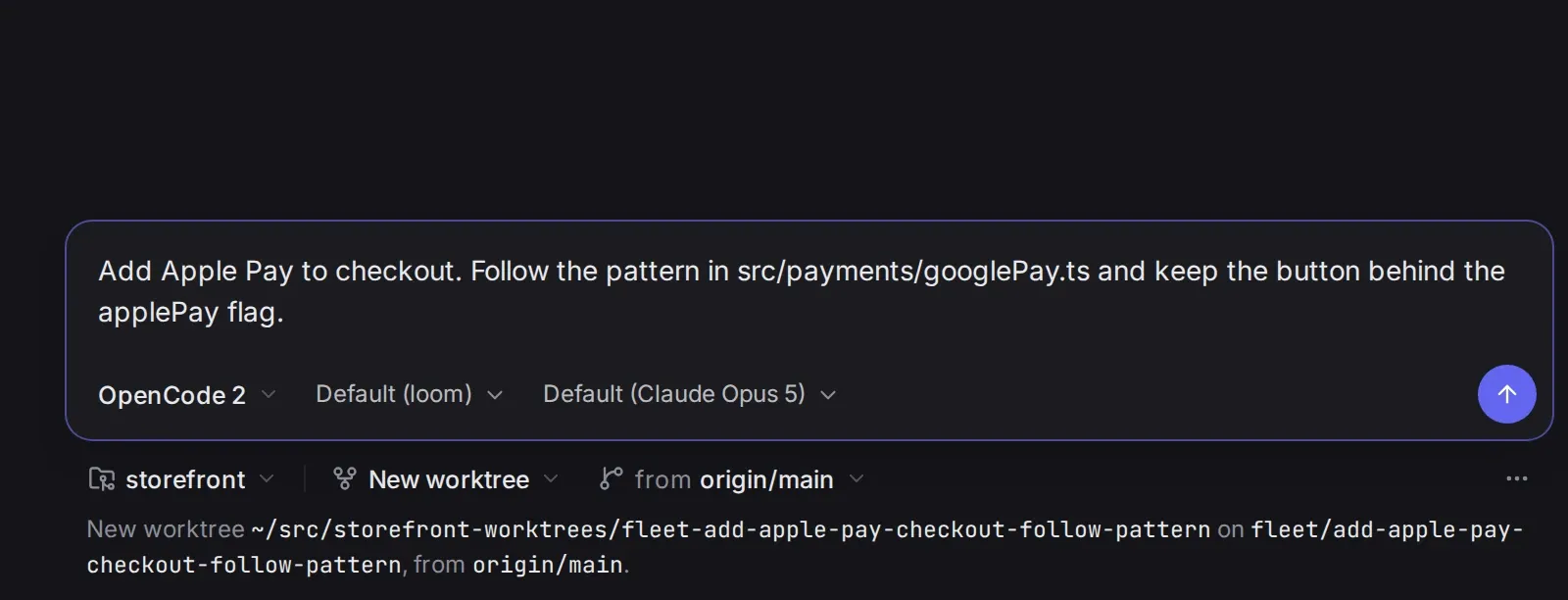
- Describe the task and send it. Something small for a first run: “Add a test for the empty-cart case.” Press Enter, or choose Start session. The session appears in the list, and its row shows an animated glyph while the agent works.
- Review the change. When the agent finishes, the glyph stops. Open Changes in the panel on the right. It lists every file the session changed and how many lines. Choose a file to open its diff.
If the agent needs you
Section titled “If the agent needs you”When the agent asks for permission, or asks a question, the row says Needs input. A card appears at the bottom of the conversation.
- A permission card says what it wants, such as Wants to run a command. Choose Allow once, or deny it and tell the agent what to do instead. You can also choose Don’t ask again for that kind of request in this session.
- A question card has its answers as buttons, a Something else… field, Send answer and Skip.
To stop an agent that is mid-turn, choose Interrupt in the composer or press Esc.
What Fleet made
Section titled “What Fleet made”Fleet made a git branch and a worktree for the session. By default the branch is named fleet/ plus words from your message, and the worktree is in a folder next to your repository, called <repo>-worktrees. Your own checkout stays as it was.
- Archive a session to stop what it left running. The worktree stays, and the next message brings the checkout back. Settings → Storage can clean up the checkouts of old archived sessions. The branch and the conversation stay.
- Delete permanently… removes the session, its history and its worktree. It doesn’t delete the branch.
Where next
Section titled “Where next”- Choose a harness: add another harness and start a session on it.
- What works where: see what changes when you switch.
- Sessions and worktrees: the list, archiving and cleanup.
- Reviewing a session: diffs, files, the app and a terminal.
- Mods: change what Fleet shows on a tool’s row.